In Windows 10, there are a number of options which you can use to change sounds for different system events, configure output and input devices, and more. Starting with Windows 10, Microsoft has added the ability to change the output audio device with the Settings app.
Windows 10 allows you to choose which output audio device to use by default in the OS. Modern PCs, laptops and tablets can use classic speakers, Bluetooth headphones and many other audio devices which you can connect simultaneously.
The default audio output device is a device which Windows 10 is using to play the audio. Other device can be set to mute or to play the same audio stream. Note: Some third-party apps can utilize other devices with special options in their settings and override the system preferences.
There are a number of ways to choose the default audio device in Windows 10. Let's review them.
Change Default Audio Device in Windows 10
1,Open Settings.
2,Go to System - Sound.
3,On the right, select the required device in the drop down list Choose your output device.
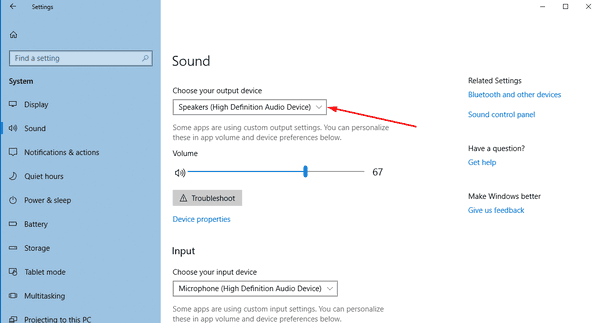
4,You might need to restart some apps like audio players to make them read the changes you made.
You are done.
Set the Default Audio Device with the Sound flyout
Another new option starting with Windows 10 Anniversary Update is the ability to choose the default audio device right from the sound volume flyout. Here is how.
To change the Default Audio Device, do the following.
1,Click on the sound volume icon in the system tray.
2,Click on the up arrow in the sound flyout
3,Choose the desired audio device from the list.
4,Restart your audio apps if required.
Set the default audio device with the classic Sound applet
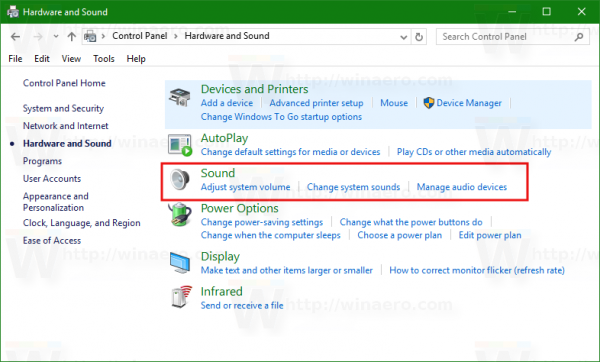
The classic Sound applet can be used to set the default audio device. As of this writing, it is accessible from both the system tray and Control Panel. Here is how it can be done.
1,Right-click the sound icon at the end of the taskbar.
2,Select Sounds from the context menu
3,This will open the Sounds tab of the classic applet.
4,Select the desired device in the list and click on the Set Default button.
That's it.
Source:
https://winaero.com/change-default-audio-device-windows-10/


